OpenDRIVE Map Preview
Oscilla draws OpenDRIVE road networks in 3D inside the browser. Import a .xodr file, click it in the workspace, and you can inspect the junctions, lanes, and geometry it describes before you write a scenario against it. Nothing to install.
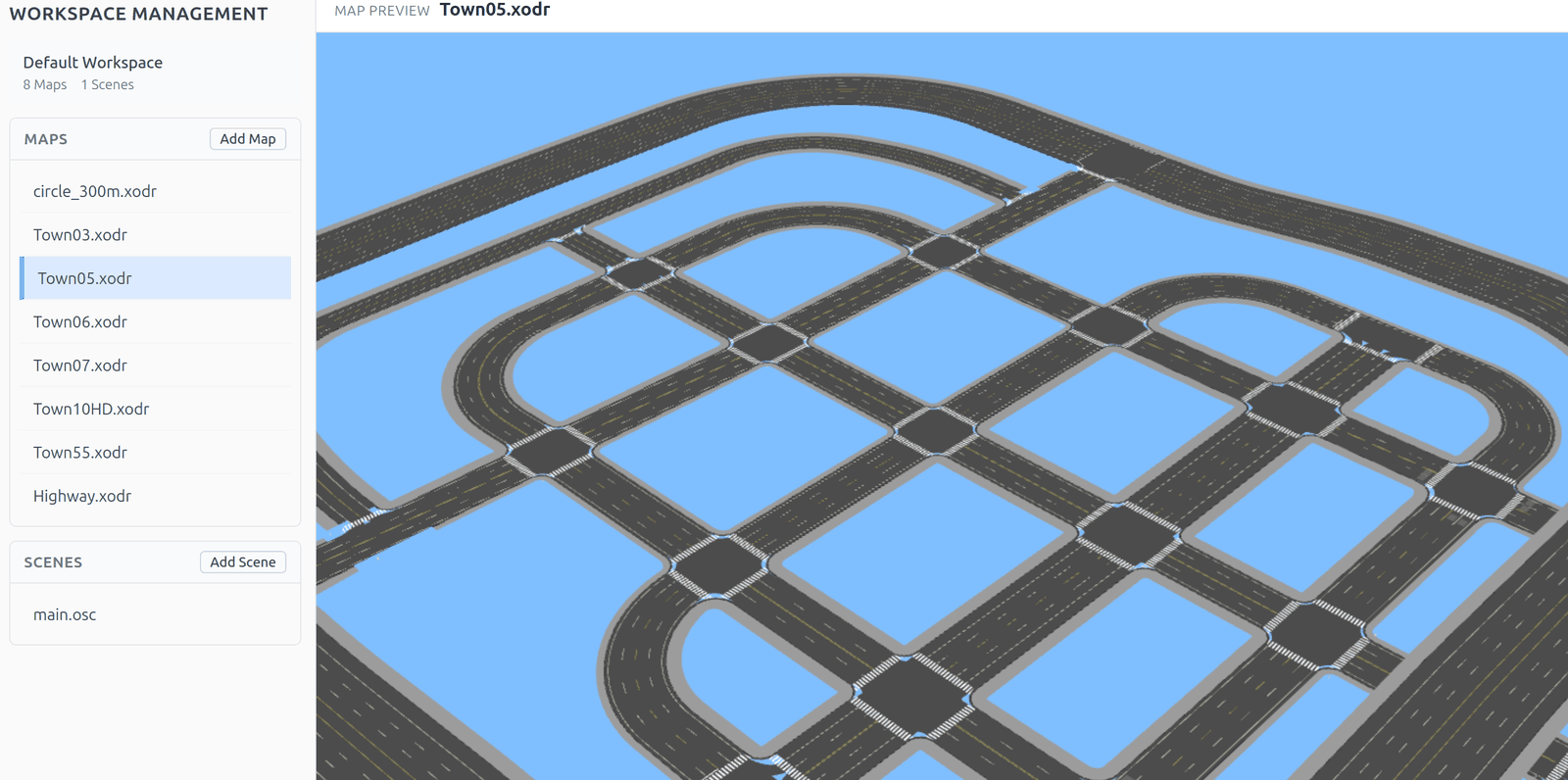
What a map preview shows
The preview draws the road network as the map file defines it: road geometry, lane counts and lane markings, junctions and the lanes that connect them, and elevation. It is the quickest way to confirm that a map contains the intersections and lane layout your scenario expects, instead of finding out halfway through writing it.
Supported files
Maps use the OpenDRIVE format with the .xodr extension. The check is case-insensitive, so Town05.XODR imports exactly like Town05.xodr. Any other extension is rejected on import.
How to preview a map
- In the Workspace Management panel on the left, click Add Map and pick an
.xodrfile. - Click the map in the Maps list. The editor gives way to the map preview, and the map name appears in the header.
- Go back to editing by clicking any scene in the Scenes list.
An imported map stays in the workspace, so a page refresh does not force you to import it again.
Mouse controls
| To do this | Use this |
|---|---|
| Rotate the view | Drag with the left mouse button |
| Pan across the map | Drag with the right mouse button |
| Zoom in and out | Scroll the mouse wheel |
Rotation orbits the point you are looking at, and zoom stops at a minimum distance, so it is hard to lose the map by scrolling too far.
File actions
Map actions live in the right-click menu on the map row: rename, download, and delete. The toolbar above the preview keeps Open and Save, which apply to scenario files — Open loads a scenario and returns you to the editor.
Maps and scenarios together
A scenario refers to its map by file name, and the scene preview loads that map automatically. A map therefore has to be in the workspace before a scenario that uses it can be previewed, and renaming a map changes the name a scenario has to refer to.
If the preview does not appear
- A lock icon instead of the map — previews need a registered account. Sign in or register, then open the map again.
- "Failed to render map" — the file could not be read as OpenDRIVE. Check that the document is complete; a truncated or hand-edited file is the usual reason.
- A loading message on a large map — the preview starts on demand, so the first render of a big network takes a moment. Opening the same map again is faster.
Next steps
- Workspace Management — import, rename, and delete files
- Scene Preview — render a scenario on its map
- Quick Start — write your first scenario
- FAQ — common questions